
Start with the application, then read the specification sheet. There is no universal order of priority for CPU, RAM and storage: databases, file storage and compute jobs place different demands on a server. A website count or user count alone cannot tell you how many cores or how much memory you need.
Separate the four resources
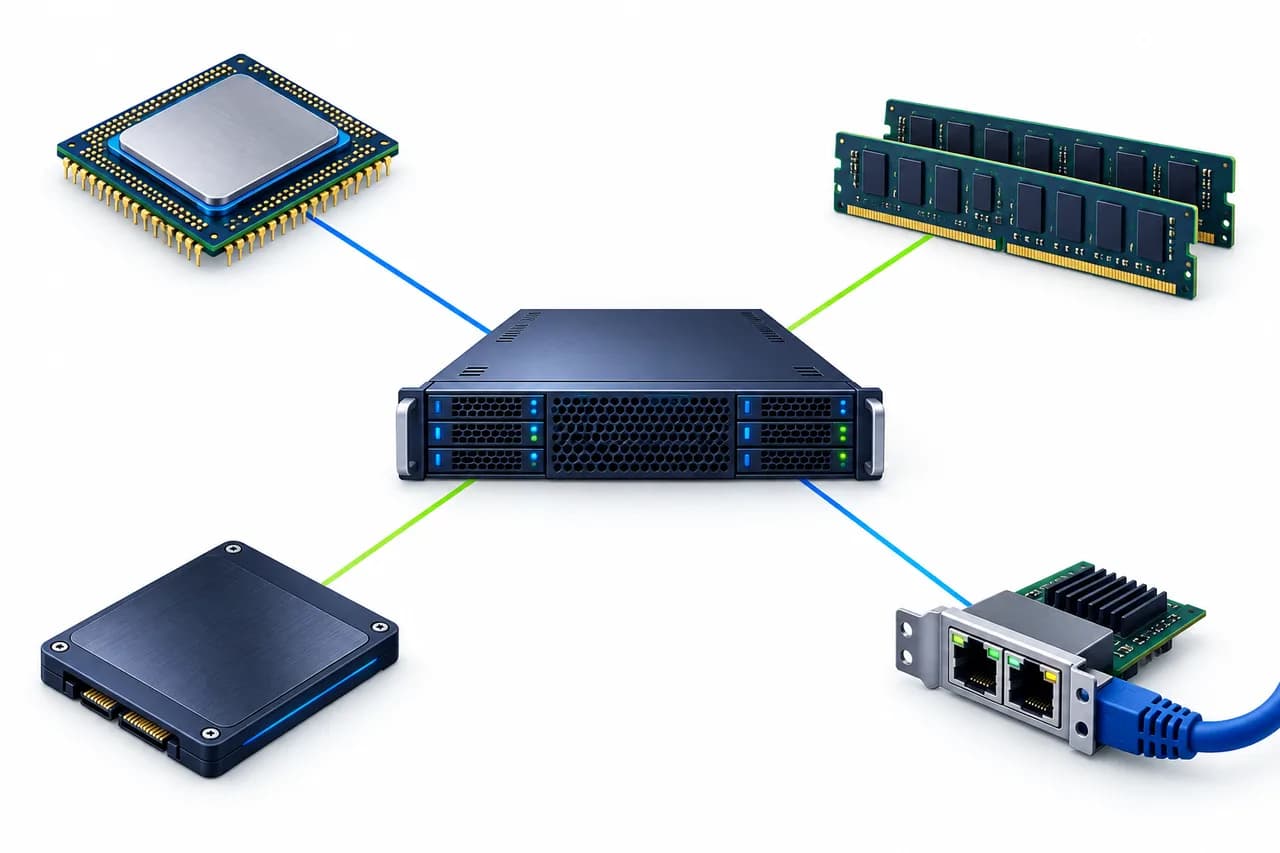
Upper left · CPU
Runs calculations. Check processor model, allocation and whether the application can use multiple cores.
Upper right · RAM
Holds the running OS, applications, database and cache.
Lower left · Storage
Keeps data. Check capacity separately from read/write performance.
Lower right · Network
Connects users and services. Check routes, bandwidth and transfer terms.
Simplified resource illustration, not a hardware topology. Lines show associations, not a processing sequence. The network carries requests and responses; more bandwidth cannot replace compute resources.
| Spec | What else to check |
|---|---|
| CPU count | Processor model, resource allocation and application use of multiple cores. |
| RAM capacity | Application use, concurrent jobs, peaks and headroom. |
| Storage capacity | Data growth, I/O workload and product limits. |
| Bandwidth | Routes, transfer accounting and how the service will be used. |
CPU: look beyond core count
Equal core counts do not imply equal processing power. Check the processor model and generation, then ask how the plan allocates vCPUs. A vCPU is a processor resource presented to a virtual machine; it does not by itself guarantee an exclusive physical core. Definitions and allocation policies vary by platform.[1]
The application must also be able to use parallel processing. One busy thread can leave aggregate CPU usage looking low on a multicore system. Inspect processes and threads before ruling out a CPU constraint or ordering more cores.[2]
Memory: check availability and operating records
Account for the OS, application, database, cache and concurrent jobs. Allow for peaks and growth based on the workload rather than a fixed headroom percentage.
High used memory alone does not establish a shortage: the OS can use spare RAM for cache. Check available memory, swap activity, application errors and out-of-memory (OOM) logs. Linux MemAvailable estimates memory available to new applications without swapping; it is not simply the free-memory figure.[3]
Storage: capacity and I/O are different
Capacity describes how much data fits. Throughput describes data transferred per unit of time. IOPS means input/output operations per second and must be considered alongside operation size and latency. Small random database reads and large sequential file transfers are different workloads.[4]
Plan separately for current data, growth, logs and backups. Another copy on the same disk is not a substitute for an independent backup arrangement. An SSD or NVMe label does not guarantee application speed; check the product’s I/O limits and the workload as well.
Choose a starting point
New project
- 01Read software requirements
- 02Choose an initial specification
- 03Run bounded validation
- 04Adjust from observations
Minimum software requirements are a starting condition, not a production sizing recommendation. Validate with representative tasks and record resource use and response times.
Existing workload
- 01Collect operating records
- 02Identify constraints
- 03Compare candidate specifications
- 04Validate the migration plan
Keep peak-period resource records and application observations. Before migration, check backups, compatibility and downtime arrangements.
For a new project, list software and versions, read the official requirements, and validate within permitted trial or testing conditions. For an existing workload, record CPU, RAM, disk, network, concurrent jobs and response times during normal and peak periods; one quiet-period screenshot is not representative. Confirm which resources can be upgraded and whether changes require migration or downtime. Do not assume every configuration can be expanded without interruption or data risk.
Testing a route before purchase →VPS or dedicated: compare the boundaries
Virtual resources or a whole host?
AI concept illustration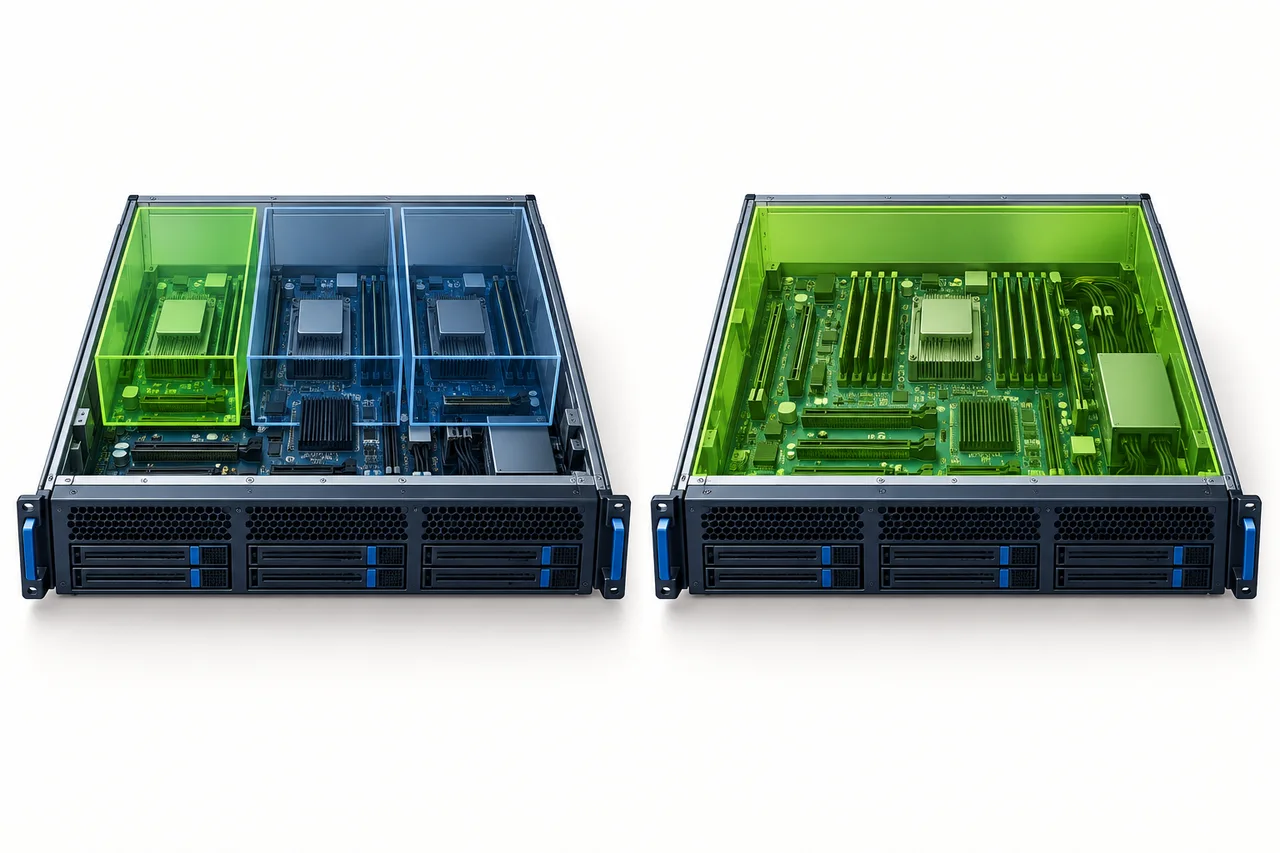
- Left · VPS
- Virtual resources allocated on a physical host. The divisions are logical, not physical walls.
- Right · Dedicated
- A whole physical host for your use. Performance still depends on its hardware and configuration.
Concept hardware, not a listed model. Green marks resource scope, not performance.
A VPS allocates physical host resources to virtual instances. Compare the starting cost and adjustment options, then check the specific isolation, CPU allocation and upgrade terms.
A dedicated server is assessed as a whole hardware system. Consider it when you need specific hardware, whole-machine resources or a particular isolation boundary. Include cost, administration responsibilities and expansion options. Exclusive hardware does not automatically make every application faster, and a VPS is not inherently inadequate.
Separate introductory, renewal and optional charges
List the base plan, route, bandwidth, IP and storage options, then check the checkout total. Record the introductory price separately from the renewal amount and billing cycle; the first-month offer is not a long-term cost estimate.
Check how post-delivery operations work
Confirm supported operating systems, upgrade conditions and backups. Base services do not include OS reinstallation, software configuration or managed operations; check any services expressly agreed in an existing order. Back up important data before changes. A support ticket is neither authorization for a destructive operation nor proof of execution.
What to check when something is slow
These are illustrative situations, not customer cases or diagnoses of a particular incident.
Observation
Pages are slow, but aggregate CPU usage is low
Next check
Inspect individual threads and processes, database timings, disk waits and network connections to find where the time is spent.
Observation
The application keeps restarting
Next check
Read application and system logs. Check for out-of-memory events rather than assuming memory is responsible; software errors, configuration or other causes may be involved.
Observation
There is free disk space, but I/O is slow
Next check
Record access patterns, latency and concurrent load, then check the product’s I/O limits.
What to send with a sizing enquiry
- Application and version; new project or existing workload.
- Audience locations, current data volume and expected growth.
- Available resource records, peak periods and symptoms.
- Budget and any hardware, OS or managed-service requirements.
Mark unknown items as “to be confirmed”. Share only the configuration and usage information needed for the enquiry, not passwords, keys or customer data.
Send sizing requirements →