
An online ping starts at a remote probe selected by the tool. A local ping starts at your own device and network. Different starting points can mean different paths, so the results do not have to match.
Open network tools and select Global Ping →Where each test starts
A probe is a remote device that runs a test on your behalf. The starting points look like this:
One destination, two starting networks
AI concept illustration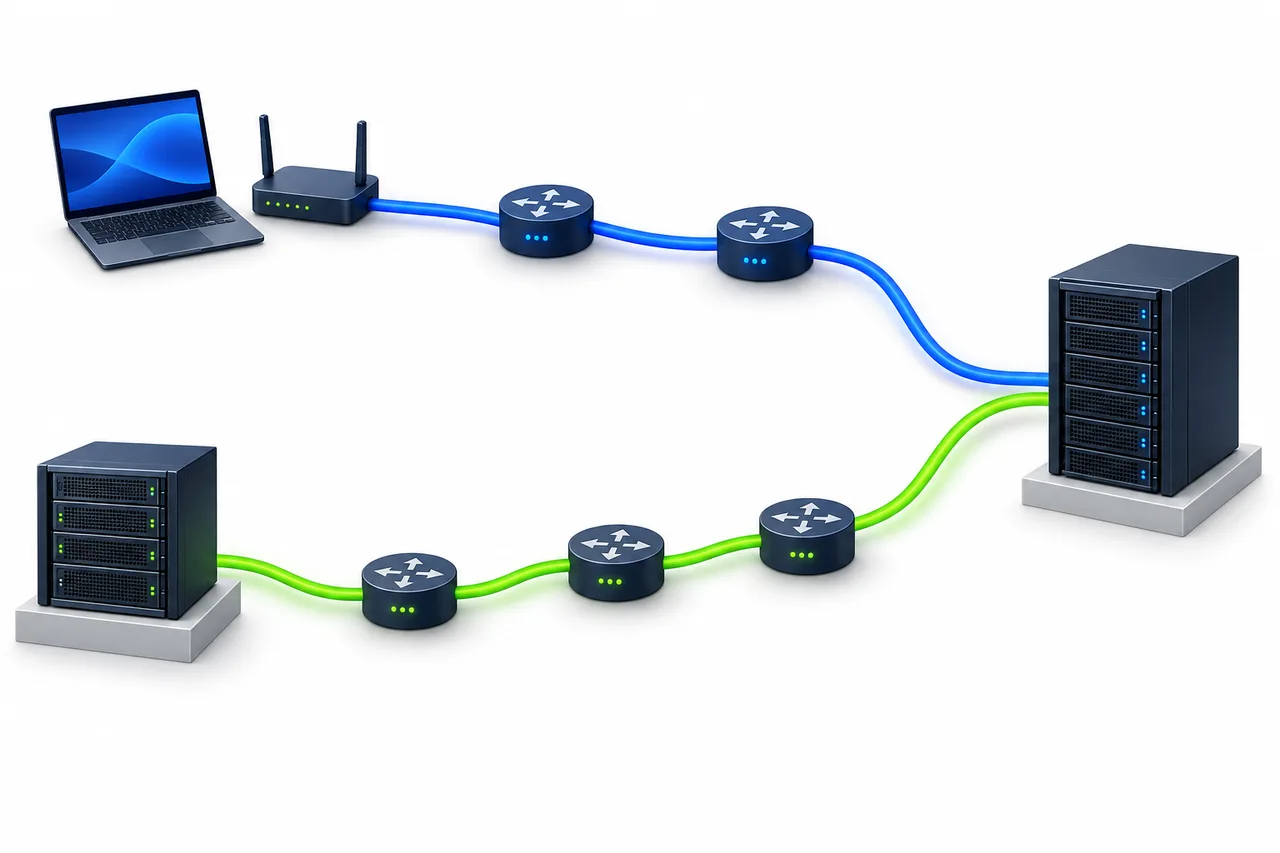
- Blue · Local ping
- Your device → local network and ISP → destination
- Green · Online ping
- Public probe → the probe’s network → destination
Starting-point schematic, not a complete trace. Colors and hop counts do not rank performance.
Fast-BGP Global Ping uses Globalping public probes. Those probes are not Fast-BGP product data centers and do not represent your own connection.[1]
Current tool: targets, probes and sample size
The current tool accepts public IPv4 and IPv6 addresses or hostnames, not URLs containing https:// or a path. Choose Asia, North America or Europe. Each test requests up to three probes, with three ICMP packets per probe. ICMP, the Internet Control Message Protocol, is used here to send echo requests and wait for replies. Results show each selected probe’s city, country and network organization, plus minimum, average and maximum latency and packet loss. The page also records the destination IP, time and completion status.
The interface does not let you select a specific city, ISP or fixed probe, or switch the IP version. Repeating a region selection does not guarantee the same probes.
Distance is only part of the difference
Home broadband, an office connection and a remote probe may use different providers. Network interconnections and routing decisions affect the round trip. Even two probes in the same city can take different paths. Network load and routes can also change between test times.
Check that both tests reached the same destination. DNS, the Domain Name System, converts a hostname to an IP, and the answers can differ by location. Fast-BGP resolves a hostname on its server and prefers a validated public IPv4 address, falling back to a returned public IPv6 address when no IPv4 is available. It then sends that IP to the probes rather than asking each probe to resolve the name independently. Compare the destination IP shown in the result.
IPv4 and IPv6 can traverse different networks. Even an identical IP can be served from several locations with anycast: routing may send different sources to different service nodes.[2]
The destination or devices along the path may filter ICMP or rate-limit responses.[3] Missing replies need investigation; a single number does not establish the cause. A lower ping alone does not establish that a server product has the better overall route.
Which result should you use?
- For your current connection to the target, use local testing alongside the actual website, application or game experience.
- For a view from remote networks, use public probes and record their cities and network organizations.
- For customer experience, test from networks close to customers’ actual locations and providers, using multiple sources. Selecting a continent or looking at one probe is not enough.
- For a server purchase, use an authorized test destination for the exact product and route. A provider’s website may use separate hosting or a CDN and cannot stand in for that product.
Each test supplies part of the picture. Keep the differences instead of selecting only the more attractive result.
Make the comparison useful
- Record the actual IP on both sides. Matching hostnames do not guarantee matching destinations.
- Align IPv4 or IPv6, the ICMP method, packet count and packet size where possible. Do not assume options absent from this interface match local defaults; note any differences.
- Run the tests close together and save the time and time zone.
- Record your local region, ISP and whether a VPN is in use, along with each remote probe’s city and network organization.
- Repeat a few bounded tests at different times. Do not base a conclusion on one minimum latency or one loss reading.
Keep the destination IP, round-trip times and packet statistics from the local output together. A screenshot of the average alone omits the comparison conditions.[4]
A ping reply does not establish application health
Ping measures the round trip from sending a request to receiving its reply, usually in milliseconds. It does not measure download speed or available bandwidth. Websites, APIs and sign-in flows depend on application services too; a ping reply does not establish that those services work.[4]
Conversely, no ICMP reply does not necessarily mean the server is down. Filtering or rate limits may be involved. Check the application connection and other measurements.
Each probe currently sends three packets. A probe showing 0% loss means only that no loss was observed in those three packets, not that the connection will remain loss-free. An unfinished test or a missing value shown as “—” must not be read as zero.
When you need to inspect the path
Switch to Traceroute or MTR diagnostics in the network tools. Traceroute shows hop responses; MTR combines per-hop timing and loss statistics. An intermediate hop that does not reply may still forward application traffic.
To check a product route, use that product’s documentation and test destination. The CN2, CMI and BGP guide explains what the route labels mean.